TL;DR:
- Practicing safe browsing habits involves regularly updating software, using strong unique passwords, and recognizing phishing threats. It also includes managing browser permissions, utilizing VPNs on public Wi-Fi, and applying family safety rules to prevent attacks. Consistent small actions, such as checking URLs and reviewing extensions, create an effective barrier against online threats.
A safe browsing habits checklist is a set of concrete daily practices that reduce your exposure to phishing, malware, and data theft while you use the web. Nearly 50% of internet users experienced a security breach in the past year. That number tells you this is not a niche concern. Tools like 1Password, uBlock Origin, and Chrome's Enhanced Safe Browsing exist precisely because human attention alone is not enough. The habits below form a practical web security checklist you can apply starting today.
1. keep your browser and software updated
Browser updates are the single most reliable defense against known vulnerabilities. Attackers actively exploit unpatched browsers, and the window between a vulnerability being discovered and being weaponized is shrinking. Chrome, Firefox, Edge, and Safari all support automatic updates. Turn them on and leave them on.
Beyond the browser itself, your operating system and browser extensions need the same attention. Browser extensions are major attack vectors that most users treat as "set and forget." A monthly audit of your installed extensions, removing anything unused or suspicious, meaningfully cuts your risk.
- Enable automatic updates in Chrome, Firefox, Edge, or Safari
- Remove extensions you have not used in the past 30 days
- Check remaining extensions for excessive permissions (camera, microphone, full page access)
- Update your operating system on the same schedule as your browser
Pro Tip: Enable HTTPS-Only Mode in your browser settings. This forces every connection to use an encrypted channel and flags sites that cannot comply.
Enhanced Safe Browsing in Chrome provides real-time protection against zero-day phishing sites by sharing security telemetry with Google. It is the right call for anyone who handles sensitive accounts regularly.
2. use strong, unique passwords for every account
Password reuse is the fastest path to a cascading breach. One compromised site hands attackers a key that opens dozens of others. The fix is straightforward: use a password manager.
Tools like 1Password, Bitwarden, and Dashlane generate and store unique credentials for every account. You remember one strong master password. The manager handles everything else. This single habit eliminates the most common entry point for account takeovers.
- Generate passwords of at least 16 characters with mixed characters
- Never reuse a password across two sites
- Check your email against breach databases like Have I Been Pwned
- Store all credentials in a dedicated password manager, not your browser's built-in storage
Two-factor authentication (2FA) adds a second lock on the door. Hardware keys like YubiKey are the strongest option, requiring physical possession to authenticate. Authenticator apps like Google Authenticator or Authy are a solid second choice. SMS codes are better than nothing but are vulnerable to SIM-swapping attacks.
3. recognize and avoid phishing links
Phishing attacks have increased 300% since 2020, driven by AI-generated content that makes malicious emails nearly indistinguishable from legitimate ones. Spotting a phishing attempt now requires deliberate attention, not just a quick scan.
Typosquatting is one of the most common tricks. Attackers register domains like "paypa1.com" or "arnazon.com" to catch users who type or click quickly. Always check the full URL before entering credentials. Hover over any link before clicking to see the actual destination in your browser's status bar.
"AI-driven phishing campaigns use automation and realistic content to escalate attacks, demanding user vigilance and updated detection tools." — Phishing in 2026
Red flags to watch for in any message or link:
- Urgency language ("Your account will be closed in 24 hours")
- Sender addresses that almost match a real domain
- Unexpected attachments, especially .zip, .exe, or .docm files
- Links that redirect through a URL shortener before reaching the destination
When in doubt about a site you have never visited, paste the URL into Verified before clicking through. Sites like monolithicscroll.shop and wulpg.help have already been flagged as dangerous. Checking first costs you five seconds. Getting defrauded costs far more.
4. manage browser permissions and privacy settings
Blocking third-party cookies and denying unnecessary permissions are two of the highest-impact privacy habits you can build. Most sites request far more access than they need. Granting camera, microphone, or location access to a site you visit once is a risk with no upside.
Here is a practical order for locking down your browser permissions:
- Open your browser's privacy settings and set third-party cookies to "blocked" or "limited."
- Review the permissions list under Site Settings. Revoke camera, microphone, and location access for any site that does not genuinely require it.
- Install uBlock Origin. Ad-blockers like uBlock Origin block up to 90% of malicious or intrusive web content, including fake download buttons and malvertising.
- Set your default search engine to one with stronger privacy defaults, such as DuckDuckGo or Brave Search.
- Disable JavaScript for untrusted sites using an extension like NoScript if you are comfortable with occasional site breakage.
Pro Tip: Treat every permission request as a red flag until proven otherwise. A recipe site asking for your location has no legitimate reason to do so.
Browser security is a frontline layer against modern threats like session hijacking and malicious prompts. Treating your browser as a hardened security layer, rather than a passive window to the web, changes how you respond to every prompt and pop-up.
5. stay safe on public wi-fi
Public Wi-Fi is a convenience that comes with real risk. Coffee shops, airports, and hotels run open networks where traffic can be intercepted by anyone on the same connection. Avoid logging into banking, email, or any account with sensitive data unless you are protected.
A VPN (Virtual Private Network) encrypts your traffic at the network level, making it unreadable to anyone monitoring the connection. This is the correct tool for public Wi-Fi safety. Incognito mode only hides your local browsing history. It does nothing to protect your data in transit over a public network.
- Use a reputable VPN service whenever you connect to public Wi-Fi
- Confirm the site uses HTTPS (look for the padlock icon) before entering any data
- Avoid accessing financial accounts or sensitive email on public networks without a VPN
- Forget public Wi-Fi networks after use so your device does not auto-reconnect
Safe browsing tools compensate for human speed. You browse quickly and often miss subtle URL threats. Tools and habits working together close the gap that attention alone cannot.
6. apply safe browsing rules for the whole family
Safe browsing rules for families require a slightly different approach than individual habits. Children and older adults are disproportionately targeted by scams because they are less likely to question unexpected messages or urgent requests.
Set up separate browser profiles for different family members. Use parental controls built into browsers like Chrome Family Link or Microsoft Family Safety to restrict access to harmful content. Teach children to ask before clicking any link in an email or text, regardless of who appears to have sent it. The same rule applies to adults who are less familiar with phishing tactics.
Review the family's shared devices monthly. Check installed extensions, saved passwords, and permission grants. One compromised device on a shared network puts every other device at risk.
Key takeaways
Safe browsing is a behavioral habit, not a one-time setup. Consistent, small actions repeated daily provide far stronger protection than any single tool or fix.
| Point | Details |
|---|---|
| Update everything regularly | Enable automatic updates for your browser, OS, and audit extensions monthly. |
| Use a password manager | Tools like 1Password or Bitwarden eliminate password reuse, the top cause of account takeovers. |
| Verify links before clicking | Hover to check URLs, watch for typosquatting, and use Verified to check unfamiliar sites. |
| Lock down permissions | Block third-party cookies, deny unnecessary site access, and install uBlock Origin. |
| VPN over incognito on public Wi-Fi | Incognito hides local history only. A VPN encrypts your traffic at the network level. |
The habit that actually protects you
Most people read a checklist like this, nod along, and change nothing. I have watched this pattern for years. The problem is not knowledge. It is the gap between knowing and doing.
The habits that actually protect you are the boring ones. Updating your browser when the prompt appears instead of dismissing it. Checking a URL for one extra second before clicking. Saying no to a permission request that feels unnecessary. None of these feel significant in the moment. Together, they form a wall that most attackers will not bother trying to climb.
Users often ignore browser warnings because they are unclear or feel like friction. That friction is the point. When Chrome or Firefox flags a site, that is not an inconvenience. It is the system doing exactly what it was built to do. Trust it.
The one blind spot I see most often is extension bloat. People install a dozen extensions over time and never revisit them. Each one is a potential entry point. Treat your extension list the way you treat your bank statements. Review it monthly, and remove anything you cannot immediately justify keeping.
Safe browsing in 2026 is less about any single tool and more about treating your browser as the frontline security layer it actually is. Every click is a decision. Make it a deliberate one.
— Nick
Check any website before you click
Verified analyzes over 200 security and reputation signals to give any website a trust score from 0 to 100. You paste a URL, and within seconds you get a clear verdict on whether the site is safe to visit or a likely scam.
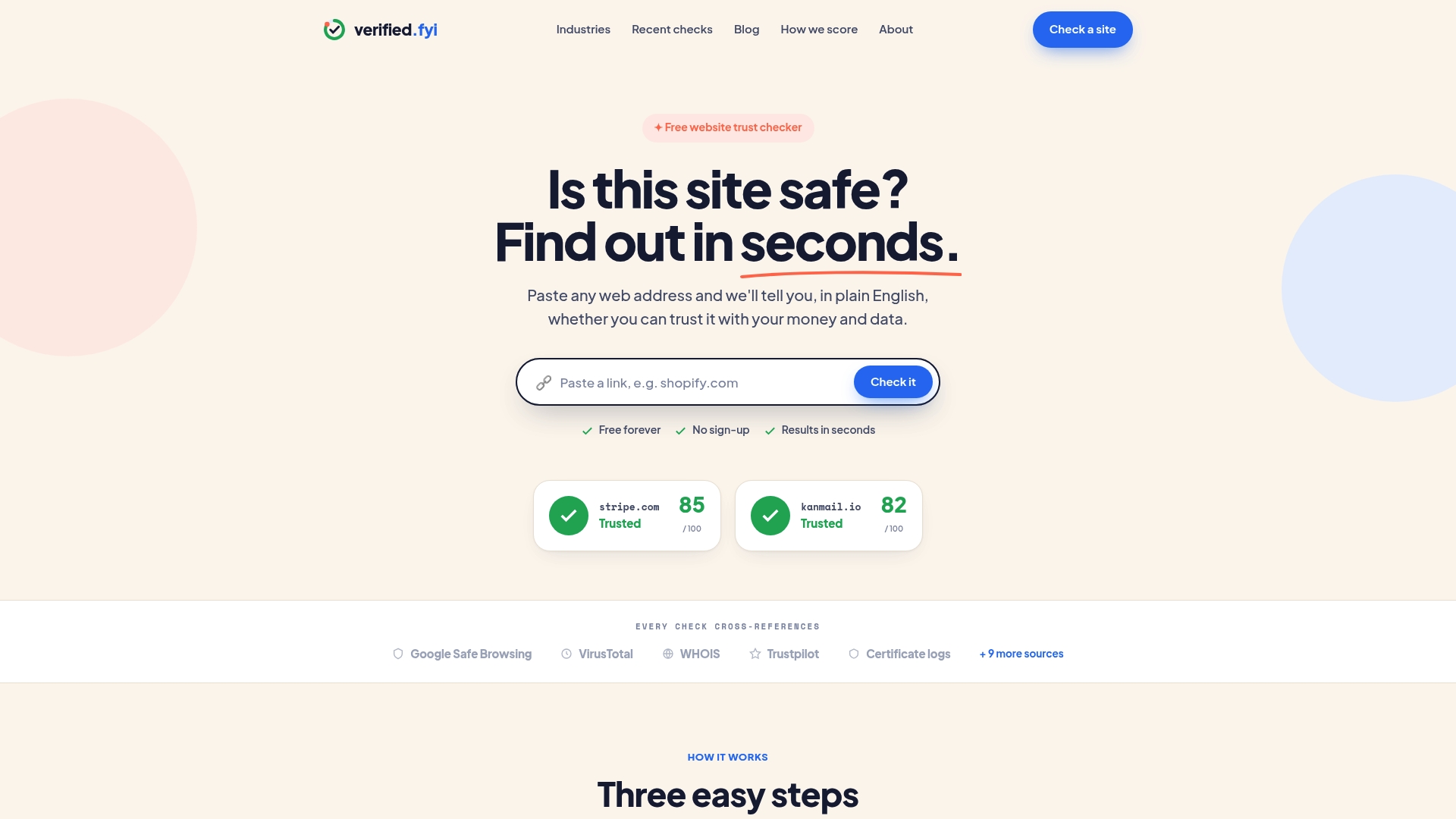
That kind of instant check fits naturally into the habits above. Before you enter payment details on an unfamiliar store, before you click a link from an unexpected email, run it through Verified first. Browse the recently checked websites to see how real suspicious sites score, or go straight to verified.fyi to check any URL right now. It takes five seconds and removes the guesswork entirely.
FAQ
What is a safe browsing habits checklist?
A safe browsing habits checklist is a structured set of daily practices covering updates, password hygiene, phishing awareness, and privacy settings that reduce your risk of online threats.
Does incognito mode keep me safe on public wi-fi?
No. Incognito mode only hides your local browsing history. A VPN is required to encrypt your traffic and protect your data on public networks.
How often should i audit my browser extensions?
Once a month is the recommended frequency. Monthly audits of extensions, with a focus on revoking excessive permissions, significantly reduce your browser's attack surface.
What is the best way to protect against phishing in 2026?
Use a combination of hovering over links before clicking, checking unfamiliar URLs with a tool like Verified, and enabling Enhanced Safe Browsing in Chrome for real-time protection against zero-day phishing sites.
Are password managers safe to use?
Yes. Password managers like 1Password, Bitwarden, and Dashlane are far safer than reusing passwords across sites. They use strong encryption to protect your stored credentials and generate unique passwords you would never create manually.