TL;DR:
- Browser security warnings alert users to potential risks like expired certificates, unencrypted connections, or malware. Responding appropriately helps prevent credential theft, malware infections, and phishing attacks. However, warnings can be false positives or mimicked by scammers, so independent verification enhances online safety.
Browser security warnings are real-time alerts that notify you when a website poses a risk to your data, device, or identity. These alerts are not random. They fire when browsers like Chrome, Safari, and Edge detect specific failures: expired SSL certificates, unencrypted connections, phishing patterns, or known malware. The role of browser security warnings is to stop you before you hand over a password or credit card number to a site that cannot protect it. Browser warnings prevent identity theft, malware infections, and financial loss. Ignoring them raises your risk of credential theft and ransomware significantly.
How do browser security warnings work?
Browser security warnings operate through two main systems: Safe Browsing APIs and certificate transparency logs. Google Safe Browsing, for example, maintains a constantly updated list of dangerous URLs and shares that data with Chrome, Firefox, and Safari. When you navigate to a URL, your browser checks it against this list in real time.
Several conditions trigger a warning:
- Expired or missing SSL certificate: The site cannot prove its identity. Chrome shows "Your connection is not private."
- HTTP instead of HTTPS: No encryption is in place. Browsers warn against entering passwords or credit card details on these pages. Safari, Chrome, and Edge all flag this explicitly.
- Phishing detection: The URL or page content matches known phishing patterns in the Safe Browsing database.
- Malware detection: The site has been flagged for hosting malicious downloads or scripts.
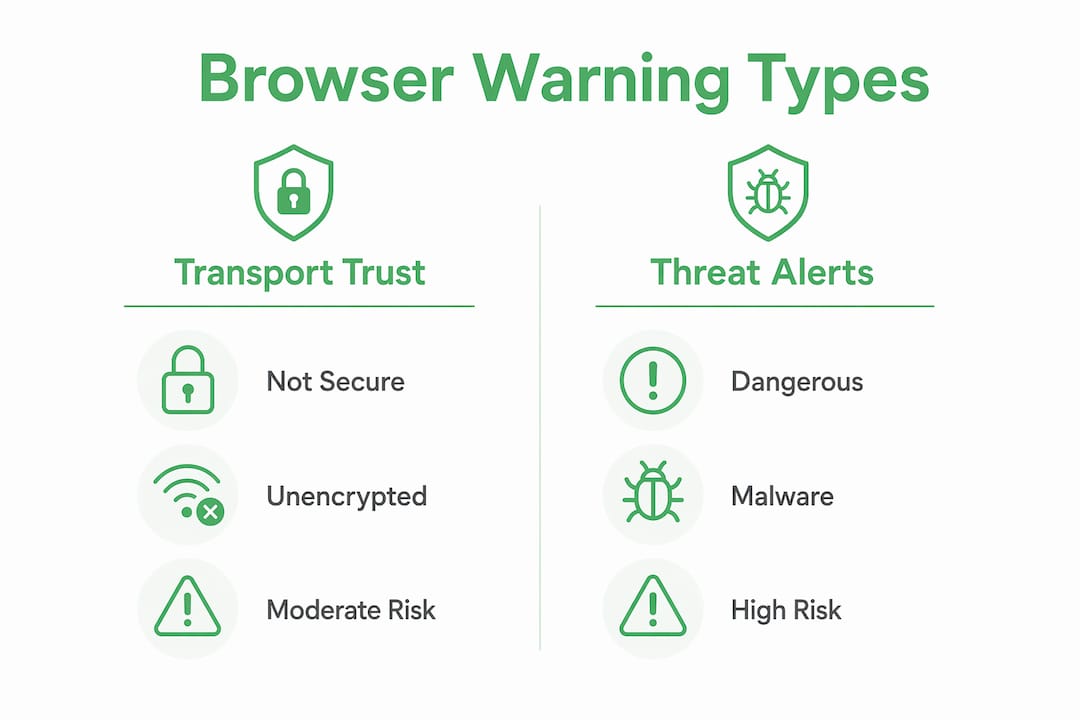
The two main warning categories behave differently. A "Not Secure" label signals a transport trust failure. A "Dangerous Site Blocked" screen signals a malware or phishing threat. These are not the same thing, and treating them as identical leads to poor decisions.
Chrome's "Not Secure" warning is a transport trust signal, not a malware flag. It means the site has a governance failure in its security setup, not necessarily that someone is actively attacking you.

Pro Tip: Before entering any personal data, look for the padlock icon in the address bar and confirm the URL starts with "https://". If either is missing, close the tab.
What is the impact of browser security warnings on user safety?
Browser security alerts are one of the most effective tools the web has for stopping attacks before they happen. When a warning appears and you heed it, you avoid handing your credentials to a site that cannot secure them. That single action can prevent a chain of consequences: account takeover, financial fraud, and ransomware deployment.
The impact of browser security alerts depends heavily on whether users actually respond to them. Research on human-computer interaction shows that users often ignore warnings because frequent or unclear alerts train them to treat warnings as noise rather than genuine threats. This is called alert fatigue, and it is a real security problem.
When warnings are heeded, the benefits are concrete:
- Credential theft drops because users avoid entering passwords on unencrypted pages.
- Malware infections decrease because users do not proceed to flagged download pages.
- Phishing success rates fall because the warning interrupts the deception before it completes.
- Website credibility suffers when a site triggers warnings, pushing users toward safer alternatives.
Alert fatigue is not carelessness. Repeated, vague warnings condition users to click through without reading. Browser designers at Google and Mozilla have worked to make warnings more specific and harder to dismiss, precisely because clarity drives better user response to browser alerts.
What are the nuances and limitations of browser warnings?
Not every warning signals an active attack. Some warnings are false positives caused by low site reputation or lack of historical data. A brand new legitimate business may trigger a warning simply because its domain has no track record. That does not mean the site is dangerous.
Understanding browser security messages requires knowing the difference between warning types:
| Warning type | What it means | Level of concern |
|---|---|---|
| "Not Secure" (HTTP) | Transport trust failure, no encryption | Moderate: avoid entering sensitive data |
| "Your connection is not private" | SSL certificate issue | High: verify before proceeding |
| "Dangerous Site Blocked" | Known phishing or malware | Critical: do not proceed |
| False positive warning | New or low-reputation site | Low to moderate: verify independently |
Partial HTTPS coverage is another common governance failure. A site may secure its login page but leave the rest of the site unencrypted. Once you log in and navigate deeper, your session data travels without protection. The browser may not warn you at that point because the login itself appeared secure.
Scammers also exploit the importance of security warnings by creating fake alert pages. These mimic legitimate browser warnings and pressure you to call a phone number or install software. Fake security alerts are designed to steal credentials through phishing disguised as protection.
Pro Tip: Real browser warnings never ask you to call a phone number or download a fix. If an alert includes a phone number or a download button, it is a scam.
Overreacting to warnings carries its own risks. Installing third-party "security booster" extensions adds 410 ms of latency and increases memory use significantly, without improving security beyond what your browser already provides natively.
How should you respond to browser security warnings safely?
The right response to a browser warning depends on the type of warning and the context. Here is a practical sequence:
- Read the warning carefully. Note whether it says "Not Secure," "Certificate Error," or "Dangerous Site." Each requires a different response.
- Check the certificate details. Click the padlock or warning icon to see who issued the certificate and whether it has expired.
- Confirm the URL. Look for typosquatting: "paypa1.com" instead of "paypal.com." Scammers register near-identical domains to intercept traffic.
- Do not click links in the warning itself. Navigate manually by typing the URL directly into the address bar.
- Use a password manager. Tools like 1Password or Bitwarden will not autofill credentials on a domain that does not match the saved entry. That is a built-in phishing defense.
- Enable two-factor authentication (2FA). Even if credentials are stolen, 2FA blocks unauthorized access.
When you are unsure whether a warning is legitimate, do not proceed. Check the site independently using a safe browsing checklist or a site verification tool before entering any data. Recognizing common unsafe website signs takes less than two minutes and can prevent a costly mistake.
Key takeaways
Browser security warnings are your first line of defense against credential theft, malware, and phishing. Responding correctly to each warning type, rather than dismissing all alerts or panicking at every one, is the skill that keeps you safe online.
| Point | Details |
|---|---|
| Warnings signal specific failures | Each warning type indicates a different risk: transport failure, certificate error, or active malware. |
| Alert fatigue undermines protection | Repeated unclear warnings train users to ignore them, reducing their effectiveness. |
| False positives exist | New or low-reputation sites may trigger warnings without posing a real threat. |
| Fake warnings are a phishing tactic | Scammers mimic browser alerts to steal credentials. Real warnings never include phone numbers. |
| Independent verification adds a safety layer | Use a site verification tool to confirm safety before entering sensitive data. |
Browser warnings are more nuanced than most users realize
Most people treat browser warnings as a binary: either the site is fine or it is dangerous. That framing causes two opposite mistakes. The first is clicking through every warning without reading it. The second is panicking at a "Not Secure" label on a site that simply has not updated its certificate yet.
What I have observed over years of writing about cybersecurity is that the users who stay safest are the ones who pause and read. They do not need to understand every technical detail. They just need to know that "Not Secure" and "Dangerous Site Blocked" are not the same message. One is a governance issue. The other is a direct threat signal.
The other pattern worth noting: scammers have gotten very good at mimicking the visual language of browser warnings. A fake alert that looks like a Chrome error page is designed to trigger the same anxiety a real warning does, then redirect that anxiety into a harmful action like calling a fake support number. The defense is simple: real browser warnings live inside the browser chrome, not inside a webpage. If a warning appears as a webpage with a phone number, it is a scam.
Browser security is not static. Warnings will keep evolving as threats do. The best habit you can build is treating every warning as information worth reading, not noise worth dismissing.
— Nick
Check any website before you click
Browser warnings catch many threats, but they do not catch everything. A site can pass every browser check and still be a scam. That is where Verified fyi fills the gap.
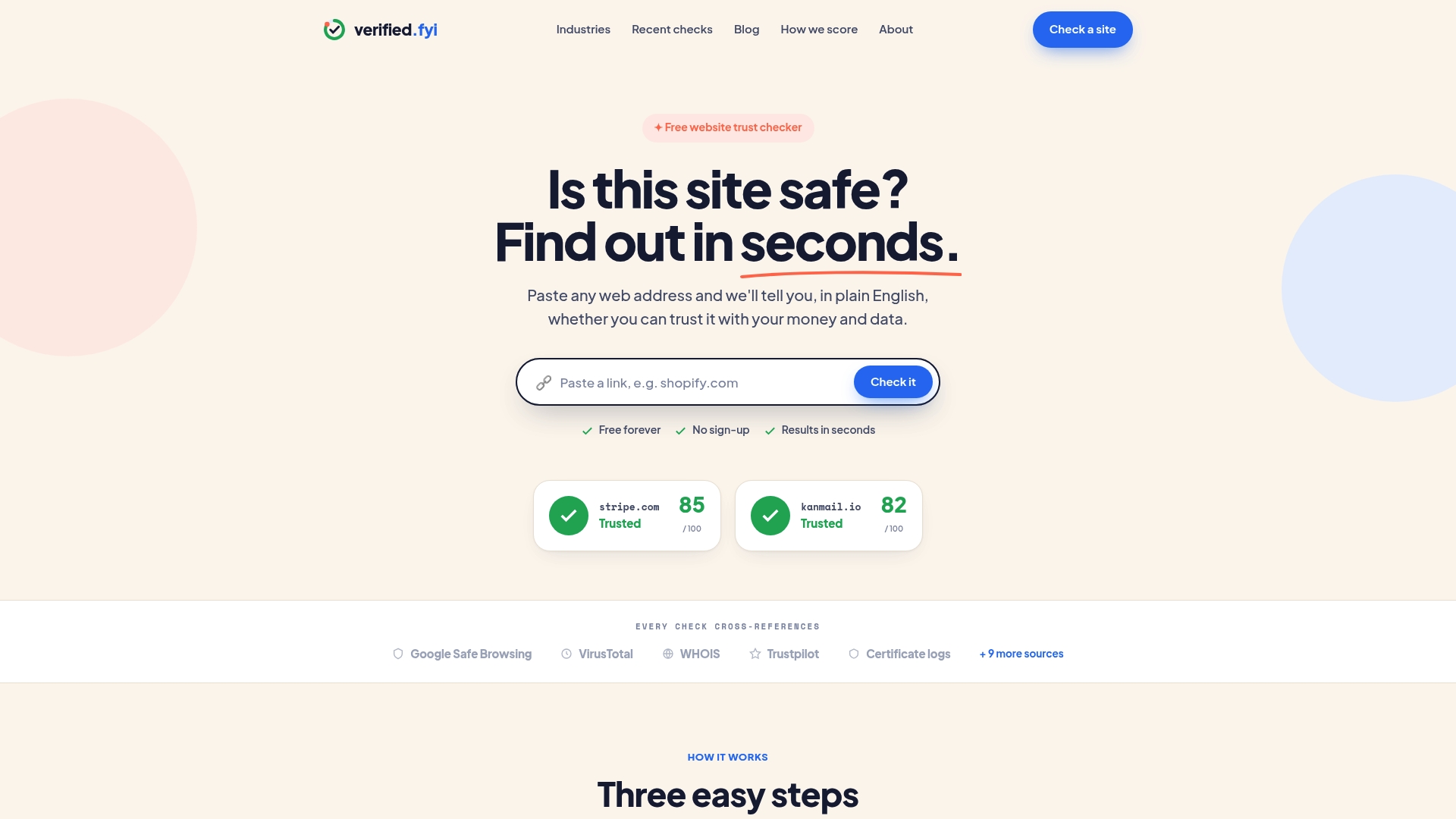
Verified fyi analyzes over 200 security and reputation signals for any website and returns a trust score from 0 to 100. You paste a URL and get a clear verdict in seconds. No technical knowledge required. Browse the recently checked websites to see what others have flagged, or run your own check at verified.fyi before you enter any personal information on an unfamiliar site.
FAQ
What triggers a browser security warning?
Browser warnings are triggered by expired SSL certificates, HTTP connections on pages requesting sensitive data, phishing patterns detected by Safe Browsing APIs, and known malware. Each trigger produces a different type of alert.
Why do users ignore browser security warnings?
Alert fatigue causes users to dismiss warnings. Frequent, vague, or repetitive alerts condition users to treat them as background noise rather than genuine threats.
Is a "Not Secure" warning the same as a malware warning?
No. "Not Secure" signals a transport trust failure, meaning the connection is unencrypted. A malware warning means the site is actively flagged as dangerous. The appropriate response to each is different.
How can you tell if a security warning is fake?
Real browser warnings appear inside the browser interface, not as a webpage. Any alert that includes a phone number, a download button, or a request to install software is a phishing scam, not a legitimate browser alert.
Can a site pass browser checks and still be unsafe?
Yes. A site can have a valid SSL certificate and no malware flags while still being a scam. Independent verification tools like Verified fyi check reputation signals beyond what browsers assess.