TL;DR:
- Website verification tools for parents combine network, device, and app controls to block harmful online content effectively. Using layered protection with AI filtering, strong credentials, and regular testing ensures a more comprehensive safety setup. Combining these tools with ongoing conversations promotes better online safety habits for children.
Website verification tools for parents are software, hardware, and browser-based solutions that analyze websites for harmful content, scams, and age-inappropriate material before children can access them. The best options combine three protection layers: network-level filtering, device-level OS controls, and app-level AI scanning. Tools like CleanRouter, Google Family Link, and the Firefox Parental Whitelist Control extension each address different gaps in a child's online environment. No single tool covers every angle, which is why understanding how they work together matters more than picking one and hoping for the best.
What makes website verification tools effective for parents?
Effective parental control website tools share a set of non-negotiable features. Knowing what to look for saves you from buying something that a determined ten-year-old can bypass in five minutes.
- Layered protection. The strongest setups combine network filtering, device OS controls, and app-level scanning. Each layer catches what the others miss.
- AI-powered real-time filtering. Static blocklists go stale fast. AI tools analyze content in context, catching new harmful sites that haven't been categorized yet.
- Ease of use. A tool you don't understand is a tool you won't configure correctly. Look for clear dashboards and plain-language alerts.
- On-device AI processing. Tools that scan content on-device avoid uploading your child's screen data to the cloud, protecting their privacy.
- Account security. Children who know your PIN or recovery email can disable controls. Strong, unique credentials are non-negotiable.
- Cross-platform compatibility. Your child probably uses more than one device. A tool that only covers one platform leaves gaps.
Pro Tip: Set up your parental control accounts with an email address your child has never seen. Recovery account access is the most common way kids disable filters.
1. CleanRouter: whole-home network filtering
CleanRouter is a hardware router that filters content at the network level for every device in your home. It uses AI-powered 7-layer filtering called IntelliFilter, which analyzes the top 10 million websites and blocks harmful content in real time. Because it works at the router, you don't need to install software on each phone, tablet, or laptop. That also means it covers smart TVs, gaming consoles, and any other device connected to your Wi-Fi. CleanRouter is one of the strongest options for families with multiple devices and mixed operating systems.

2. Google Family Link: device-level OS controls
Google Family Link gives parents control over Android and Chromebook devices through a dedicated app. You can approve or block app downloads, set daily screen time limits, and review which websites your child visits. It works at the operating system level, which means it applies across browsers and apps on the device. Family Link is free and integrates directly with Google accounts, making it a practical starting point for Android households. The limitation is that it only covers Google ecosystem devices.
3. Apple Screen Time: iOS and macOS parental controls
Apple Screen Time is built into every iPhone, iPad, and Mac. Parents can restrict adult websites, set communication limits, and lock down app purchases. Securing your Screen Time passcode is critical. If your child knows your passcode or has access to your Apple ID recovery, they can disable every restriction you've set. Screen Time works best when combined with a network-level filter, since a child can still access harmful content through a browser if the network isn't filtered.
4. Firefox Parental Whitelist Control: browser-level lockdown
The Firefox Parental Whitelist Control extension takes a strict approach. It blocks all websites by default and only allows sites you have explicitly approved. Access to the whitelist requires a PIN, and the extension locks out users after repeated failed attempts. It also blocks access to browser settings, preventing children from simply disabling the extension. This is one of the best tools for young children who only need access to a small set of approved educational or entertainment sites.
5. KidsNanny: on-device AI content scanning
KidsNanny is an app-level tool that scans web content directly on the device using AI, without sending screen images to the cloud. That on-device approach protects your child's privacy while still delivering accurate content filtering. Parents get real-time alerts when inappropriate content is detected. One honest limitation: AI filtering can produce false negatives, particularly when harmful ads appear on otherwise legitimate pages. KidsNanny recommends parents test and customize filter settings regularly to catch these gaps.
Pro Tip: After setting up any AI filter, visit a few known borderline sites yourself to check whether the tool catches them. Testing takes ten minutes and reveals gaps before your child finds them.
6. PatronScan and biometric age verification tools
Some platforms use multi-stage age verification that goes beyond a simple checkbox. PatronScan and similar services use biometric liveness detection and ID document analysis to confirm that the person accessing a site is who they claim to be. This matters most for platforms where your child might encounter age-restricted content, such as gaming sites or social networks. Simple checkbox age gates do not adequately protect children. Multi-layer verification is the standard in regulated industries and is increasingly being adopted by mainstream platforms.
7. DNS filtering: the network-level barrier
DNS filtering works by intercepting website requests at the domain name level before a page even loads. Services like Cloudflare for Families (1.1.1.3) and OpenDNS FamilyShield let you configure your router to block entire categories of harmful content for every device on your network. Network-level DNS filtering is the most difficult protection layer for children to bypass, because it operates outside the device entirely. A child cannot disable it by switching browsers, using private mode, or booting into safe mode. It is the most secure foundation for any family's online safety setup.
Comparing website verification tools: features at a glance
| Tool | Protection layer | AI filtering | Platform coverage | Privacy focus |
|---|---|---|---|---|
| CleanRouter | Network (router) | Yes, 7-layer | All devices on Wi-Fi | Moderate |
| Google Family Link | Device (OS) | No | Android, Chromebook | Moderate |
| Apple Screen Time | Device (OS) | No | iOS, macOS | High |
| Firefox Whitelist Control | Browser (app) | No | Firefox only | High |
| KidsNanny | App (on-device AI) | Yes, on-device | iOS, Android | Very high |
| DNS filtering (Cloudflare) | Network | No | All devices on Wi-Fi | High |
Pro Tip: Use the table above to spot your gaps. If you only have a device-level tool, add a network filter. If you only have a browser extension, add OS controls.
How to choose the right tools for your family
Choosing online safety tools for families works best when you match the tool to your specific situation rather than picking whatever ranks first in a search.
- Start with network filtering. A router-level filter like CleanRouter or DNS filtering covers every device automatically. This is your foundation.
- Add OS controls for each device. Use Apple Screen Time for iPhones and Macs, and Google Family Link for Android devices. These catch app-level behavior the router can't see.
- Use browser extensions for young children. The Firefox Parental Whitelist Control extension is ideal for kids who only need access to a few approved sites.
- Layer in app-level AI for older children. As kids get older and need broader internet access, tools like KidsNanny add a content-aware filter that adapts in real time.
- Test your setup regularly. AI filters require ongoing calibration to balance false positives and missed harmful content.
- Lock down your credentials. Use a unique email and strong password for every parental control account. Never reuse credentials your child might already know.
- Have the conversation. Parental controls are guardrails, not substitutes for teaching children why certain content is harmful.
Key takeaways
The most effective approach to child online safety combines network-level filtering, device OS controls, and app-level AI scanning into a layered defense that no single tool can replicate alone.
| Point | Details |
|---|---|
| Layer your protections | Network, device, and app controls each block what the others miss. |
| AI filtering needs testing | False negatives happen; test your setup regularly to catch gaps. |
| Secure your credentials | Children who know your PIN can disable every control you've set. |
| Match tools to age | Whitelist-only extensions suit young children; AI filters suit older kids. |
| Conversations matter | Tech tools work best alongside ongoing talks about online safety. |
What I've learned from years of watching parents get this wrong
Parents consistently over-rely on a single tool and call it done. I've seen families install a browser extension and assume their child is protected, only to find the child switched to a different browser within a week. Software blockers alone can be bypassed through private browsing, safe mode, or simply downloading a new browser. The network layer is the one most parents skip, and it's the hardest one for kids to get around.
The other mistake is treating the setup as a one-time task. AI filtering tools evolve, kids get more tech-savvy, and new platforms emerge constantly. A filter that worked well six months ago may have gaps today. Spending fifteen minutes a month reviewing your settings is more effective than any single tool you could buy.
Teaching algorithmic literacy alongside tech tools is the piece most guides leave out. When children understand why certain content appears in feeds and how recommendation systems work, they develop judgment that no filter can replicate. Technology and conversation together are the actual solution.
— Nick
Check any website your child visits with Verified fyi
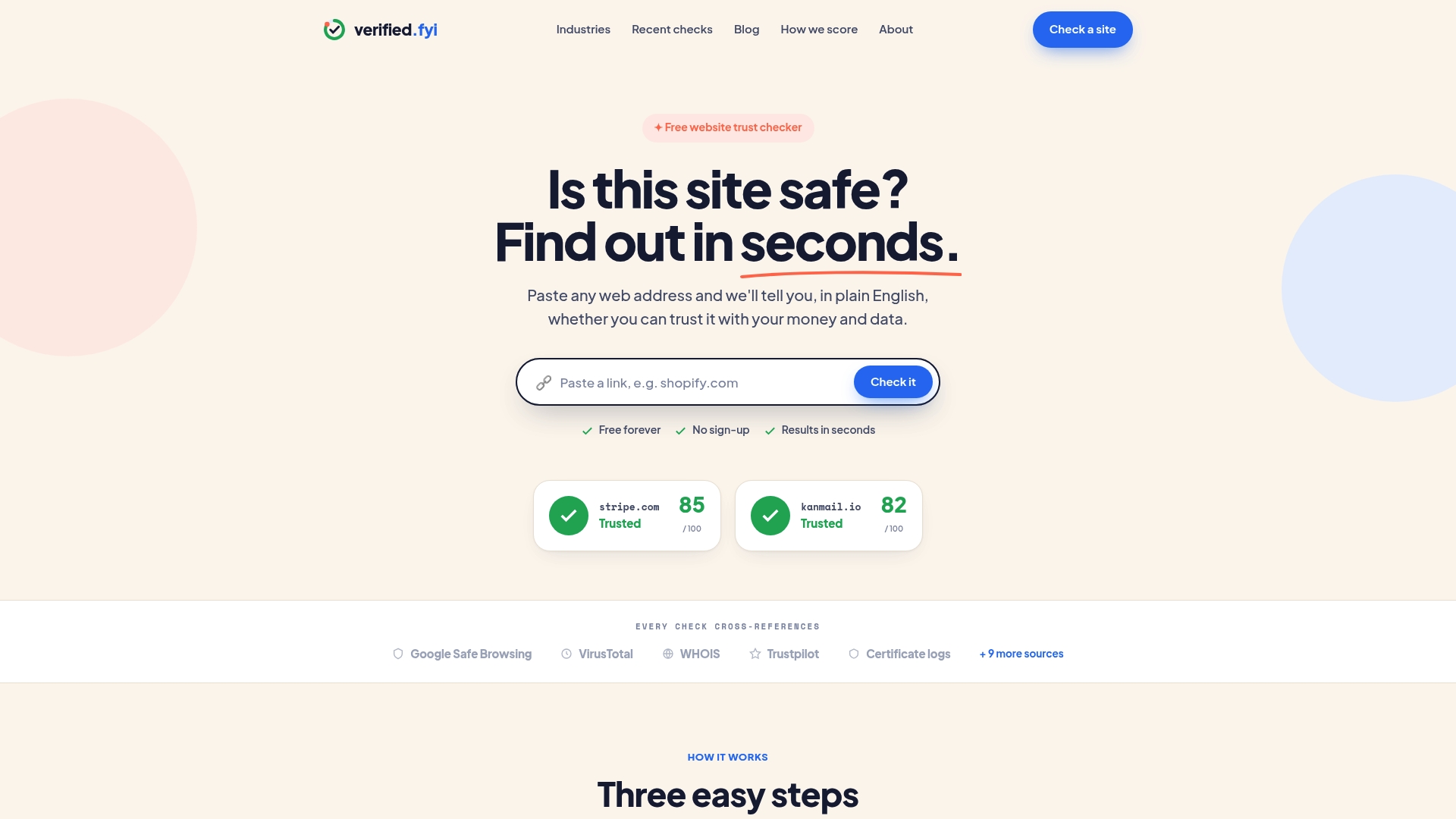
Even the best parental control setup can't anticipate every website your child stumbles across. Verified fyi analyzes over 200 security and reputation signals for any URL and returns a trust score from 0 to 100 in seconds. Paste a link, get a clear verdict. You can browse recently checked websites to see safety ratings for sites other parents are already vetting. For a deeper look at how scores are calculated, the website safety rating guide explains exactly what each signal means. Verified fyi works as a fast, independent check alongside the tools in this article.
FAQ
What is the most secure type of website filter for children?
Network-level DNS filtering is the hardest for children to bypass because it operates at the router, outside any individual device. Combining it with device OS controls gives you the strongest coverage.
Can children disable parental controls on their own?
Yes, if they know your PIN or have access to your recovery account. Securing your parental account credentials with a unique email and strong password is the most important step in keeping controls active.
Do AI content filters block everything harmful?
No. AI filters produce false negatives, particularly when harmful ads appear on otherwise legitimate pages. Regular testing and filter customization are necessary to close those gaps.
Is a browser extension enough to protect my child online?
A browser extension alone is not enough. Children can switch browsers or use private mode to bypass it. Pair any browser-level tool with a network filter for reliable protection.
How do I verify whether a specific website is safe for my child?
Paste the URL into Verified fyi for an instant safety score based on over 200 signals. This works as a quick check for any unfamiliar site your child wants to visit.