
Run the URL through a verifier, confirm it uses HTTPS with a valid certificate, and check the exact domain spelling before you type a password or hand over a payment method. If any of those three steps flags a problem, stop. HTTPS alone proves nothing about who actually runs the site, according to CISA, so pair it with a quick check on a tool like Verified fyi before you go further.
TL;DR:
- Verify the final URL by inspecting the domain spelling, certificate details, and search for any red flags such as expired certificates or unusual redirects.
- Use multiple tools like Google Safe Browsing and VirusTotal to confirm reputation and malware presence, understanding their different detection capabilities.
- Check domain registration details with WHOIS or RDAP, noting that privacy protection does not necessarily indicate fraudulent intent, especially for new domains.
- Always run links through a trusted verifier before interacting to catch potential scams hidden by perfect-looking websites or URL shorteners.
- Confirm the platform's privacy, moderation, and encryption features directly on its real domain, not just based on marketing claims or superficial checks.
Table of Contents
- Quick Checklist: 5 Things to Check in Under 2 Minutes
- How Do Certificates and Redirects Reveal a Fake Site?
- Which Reputation and Malware Checks Actually Work?
- A Repeatable Workflow You Can Run Every Time
- Checking Privacy Settings and Teen Control Options
- How Platforms Handle Data Collection and Third-Party Sharing
- Reviewing Content Controls and Moderation Policies
- Assessing Cyberbullying and Harassment Prevention Tools
- Checking Parental Controls and Monitoring Compatibility
- Are Direct Messages Actually Encrypted?
- Why URL-First Verification Still Matters
- Check Any Social Platform URL Before You Log In
- Sources
- FAQ
Quick Checklist: 5 Things to Check in Under 2 Minutes
Before you log in, click "buy," or hand over any personal information on a social platform link, run through this sequence. It takes less time than reading a single post in your feed.
- Confirm the final landing URL. Tap and hold the link (or hover on desktop) to see where it actually goes, not just the text displayed.
- Never trust link text or shorteners at face value. A shortened URL can point anywhere, and the visible words tell you nothing about the destination.
- Check HTTPS and the certificate. Look for the padlock, then open the certificate details to see who issued it and when it expires.
- Run a URL scanner or site verifier. Paste the link into a tool that checks reputation and security signals, and take flagged results seriously rather than dismissing them.
- Search independently for complaints. Look up the brand or seller name plus "scam" or "complaint" in a separate search, away from the platform itself.
If the page asks for login credentials or payment before you have finished this sequence, close it. There is no legitimate reason a site needs your password before you have confirmed it is real.
Pro Tip: Keep a URL verifier bookmarked on your phone. The two extra seconds it takes to paste a link before tapping "continue" is the single habit that stops most social-platform scams before they start.
How Do Certificates and Redirects Reveal a Fake Site?
Every browser lets you inspect a site's certificate by clicking the padlock icon next to the address bar. That certificate shows who it was issued to, which certificate authority issued it, and when it expires. A certificate issued to a name that doesn't match the brand you expected, or one that expired last month, is a clear signal something is wrong.
HTTPS itself only encrypts the connection between your device and the server. It says nothing about whether the person running that server is trustworthy. CISA is direct about this: checking for HTTPS is a starting point, not a verdict. Scammers can and do buy valid certificates for lookalike domains.
That's why the final landing URL matters as much as the certificate. Links shared inside social platform messages, comments, or ads often pass through one or more redirects before landing on the real destination. CISA's phishing guidance warns that shortened URLs are a common way to hide where a link actually goes, since the display text can say anything while the underlying address points somewhere else entirely.
Watch for these specific red flags:
- A domain that swaps one letter, adds a hyphen, or uses a different extension than the brand's real site (
.shopinstead of.com, for example) - A certificate issued to an unrelated company name or a generic hosting provider
- A certificate that expired, was just issued days ago for an established brand, or shows "not secure" warnings
- A redirect chain with three or more hops before reaching the final page
A domain one character off from the real thing is often the only difference between a safe login and a stolen password.
Which Reputation and Malware Checks Actually Work?
Once the technical basics check out, move to reputation. Several free tools each answer a slightly different question, and knowing what each one actually reports keeps you from placing too much trust in a single green checkmark.
Google Safe Browsing scans indexed pages for malware and phishing patterns using statistical models and automated testing. A clean result is useful evidence, but detection can lag behind newly created scam pages, and a site can be resampled or reclaimed after a takedown. Treat "not flagged" as "no known issues yet," not a guarantee.
VirusTotal's own documentation makes a point worth remembering: URL scanners and antivirus engines answer different questions. A convincing phishing page can pass antivirus checks entirely because it never delivers a malicious file. It just asks you to type your password into a fake login box. Checking URL reputation and file/payload safety separately catches more than checking either alone.
For ownership, a WHOIS or RDAP lookup shows registrar, creation date, and expiry. ICANN's registration-data guidance notes that privacy and proxy services routinely hide the registrant's real identity, so redaction alone isn't proof of fraud. A domain registered three weeks ago with a hidden owner is a context clue, not a conviction.
| Tool or source | What it actually tells you | What it can't tell you |
|---|---|---|
| Google Safe Browsing | Known malware/phishing flags on indexed pages | Brand-new scam sites not yet scanned |
| VirusTotal | Multiple antivirus engine verdicts on a URL or file | Whether a clean phishing page is legitimate |
| WHOIS/RDAP lookup | Registrar, creation date, nameservers | Real owner identity behind privacy redaction |
| BBB / consumer complaints | Pattern of past complaints against a name | Brand-new operations with no complaint history yet |
Finally, don't mistake an ad's presence on a social platform for vetting. The FTC has warned that social-media ads aren't consistently checked for scams, and impersonators regularly buy ad space using a real brand's name and images. Search for the seller independently rather than assuming the platform screened them for you.
A Repeatable Workflow You Can Run Every Time
The checks above turn into a five-step habit once you run them a few times. This is the sequence to follow before logging in or paying on any social platform link.
- Pause, and copy the URL manually. Don't tap the in-message or in-ad link directly. Copy the address so you can inspect it before your browser loads anything.
- Run it through a URL verifier. A tool like Verified fyi checks the link against dozens of security and reputation signals and returns a plain verdict. If it comes back "suspicious" or worse, stop there.
- Inspect the certificate and exact domain. Confirm the spelling matches the real brand and that the certificate issuer and expiry look normal.
- Cross-check WHOIS/RDAP and search for complaints. Look at how old the domain is and search the brand name plus "scam" in a separate browser tab.
- Escalate or discard. If anything flags risk, contact the platform or seller through a channel you found independently, not one provided in the suspicious message. When in doubt, walk away.
NIST's phishing guidance backs up step five specifically: verifying out-of-band, meaning through a separate channel than the one that sent the request, is one of the most effective ways to catch a scam that looks convincing on the surface. Urgency is the tell. Real businesses rarely need you to act in the next ten minutes.
Pro Tip: If a scanner comes back "clean" but something still feels off (mismatched branding, pressure to act fast, an unfamiliar payment method), trust the feeling and run a second, independent search before proceeding. A single clean scan is one data point, not a final verdict.
Checking Privacy Settings and Teen Control Options
Before a teen sets up an account on a new social platform, check the settings menu for what's actually adjustable, not just what the app claims in its marketing copy. Look specifically for a default account visibility setting (public versus private), the ability to control who can send direct messages, and whether the platform requires manual approval for new followers.

Some platforms default teen accounts to private automatically; others leave that choice buried three menus deep. That gap matters. A platform worth trusting makes privacy controls visible during setup, not something you have to hunt for after the fact. Check whether location sharing is on by default, whether the profile shows a birth year or age publicly, and whether search engines can index the profile page at all.
Also check who can see friend or follower lists, since that information alone can help a stranger map out a teen's real-world social circle. If the platform buries these toggles in a support article instead of the app itself, that's worth noting as a mark against how seriously it takes teen safety by design.
How Platforms Handle Data Collection and Third-Party Sharing
Every social platform collects data. The real question is how much, and who else gets access to it. Check the platform's privacy policy for a plain-language section on third-party sharing, not just the legal boilerplate. Look for whether it shares data with advertisers, data brokers, or "partner" companies, and whether teen accounts get any reduced data collection compared to adult accounts.
A platform that discloses exactly what it collects (location, device data, browsing behavior on other apps) and why, in language a teenager could actually understand, is more trustworthy than one that buries the answer in dense legal text. Some platforms now publish a simplified data summary alongside the full policy specifically because regulators have pushed for more transparency around minors' data.
Check whether the platform allows account holders to download or delete their data and whether that option is easy to find in settings. A platform that makes data deletion difficult, or that shares data with third parties by default with no opt-out, is a weaker choice for a teen account regardless of how the app looks or feels.
Reviewing Content Controls and Moderation Policies
Age-appropriate content controls vary enormously between platforms, and the difference usually shows up in the settings menu, not the marketing page. Check whether the platform offers a distinct teen mode or age-based content filtering, separate from the general adult experience, and whether that mode is on by default for new accounts.
Look at how the platform describes its moderation approach: automated content filtering, human review, community reporting, or some mix of the three. A platform that relies entirely on automated filtering without any human review layer tends to miss context that a person would catch immediately. Check whether the platform publishes any kind of transparency report showing how much content gets removed and why.
Also check how easy it is to report content as a bystander, not just as the person targeted. A reporting button buried four taps deep discourages use. The strongest platforms make reporting a one or two tap action directly from the content itself, with a visible confirmation that the report was received.
Assessing Cyberbullying and Harassment Prevention Tools
Check whether the platform has a dedicated, named policy on bullying and harassment, separate from its general content guidelines. A vague reference to "respectful behavior" buried in broad terms of service is a weaker signal than a specific policy that defines what counts as harassment and what happens when it's reported.
Look for built-in tools that let a teen block, mute, or restrict another account without that account being notified. Restrict-style features, where an account is quietly limited rather than fully blocked, tend to reduce retaliation because the other person doesn't always know they've been restricted. Check whether comment filtering exists, allowing certain words or phrases to be automatically hidden before a teen ever sees them.
Response time matters too. Check if the platform publishes any information about how quickly it reviews harassment reports. A platform that acknowledges reports within hours is a stronger choice than one with no stated response window at all. If you can't find any specifics on enforcement, treat that silence as a gap, not a neutral.
Checking Parental Controls and Monitoring Compatibility
Check whether the platform offers a native parental control feature, often called a "family center" or "supervision" tool, that links a parent's account to a teen's account with the teen's consent. These built-in tools typically show screen time, followers, and content categories the teen has viewed, without requiring the parent to know the teen's password.
If the platform has no native supervision tool, check whether it's compatible with third-party monitoring apps at the operating system level (iOS Screen Time or Android's Family Link, for example) rather than platform-specific software. Compatibility at the OS level is more durable, since it doesn't break every time the platform updates its app.
Check the platform's own support pages for a stated policy on parental linked accounts. If a teen can unlink or hide the connection without a parent noticing, that undermines the tool's usefulness in practice. A parental control feature buried in settings, easy for the teen to quietly disable, offers less real protection than one that requires the linked parent's approval to remove.
Are Direct Messages Actually Encrypted?
Check whether direct messages on the platform use end-to-end encryption by default, or only as an optional setting the teen has to turn on manually. End-to-end encryption means only the sender and recipient can read a message, not even the platform itself. Several major platforms have added this as an opt-in feature rather than a default, which means most teen accounts never turn it on unless someone tells them to.
Look specifically at whether encryption applies to group chats as well as one-on-one messages, since group settings often lag behind. Also check whether the platform encrypts media (photos, videos) sent through direct messages, not just text, since that's a common gap.
Encryption protects message content from outside interception, but it doesn't protect against someone screenshotting a conversation or a contact sharing it elsewhere. Treat encrypted messaging as one layer of protection, not a complete guarantee of privacy, and pair it with the account-level controls covered earlier.
Why URL-First Verification Still Matters
Most guidance about protecting teens online jumps straight to content and settings, and for good reason. But every one of those settings lives behind a login page, and that login page is a URL. If you can't confirm the platform itself is what it claims to be, at the domain and certificate level, none of the privacy or moderation settings matter, because you're possibly handing your credentials to an impersonator site instead.
That's the layered decision rule worth internalizing: stop immediately on any malware or phishing flag, then confirm the domain and certificate, then check reputation, and only then evaluate the platform's actual features. Skipping straight to "does this app have good parental controls" without confirming you're on the real app's real domain is backwards.
Verified fyi built its checker around this order because the technical layer fails silently. A fake login page can look pixel-perfect and still be checked against more than 200 signals in seconds, flagging what your eye would never catch on its own. When something looks even slightly off, run it through a verifier before you decide it's fine. That habit, repeated consistently, catches more scams than any single red flag you might notice by instinct alone.
— Nick
Check Any Social Platform URL Before You Log In
You don't need to memorize certificate details or learn WHOIS syntax to run the checks in this guide. Verified fyi does that work in seconds: paste any URL into the free website trust checker, and it cross-references more than 200 security, ownership, and reputation signals to return a trust score from 0 to 100, along with a categorized verdict (dangerous, suspicious, caution, mostly safe, or trusted).
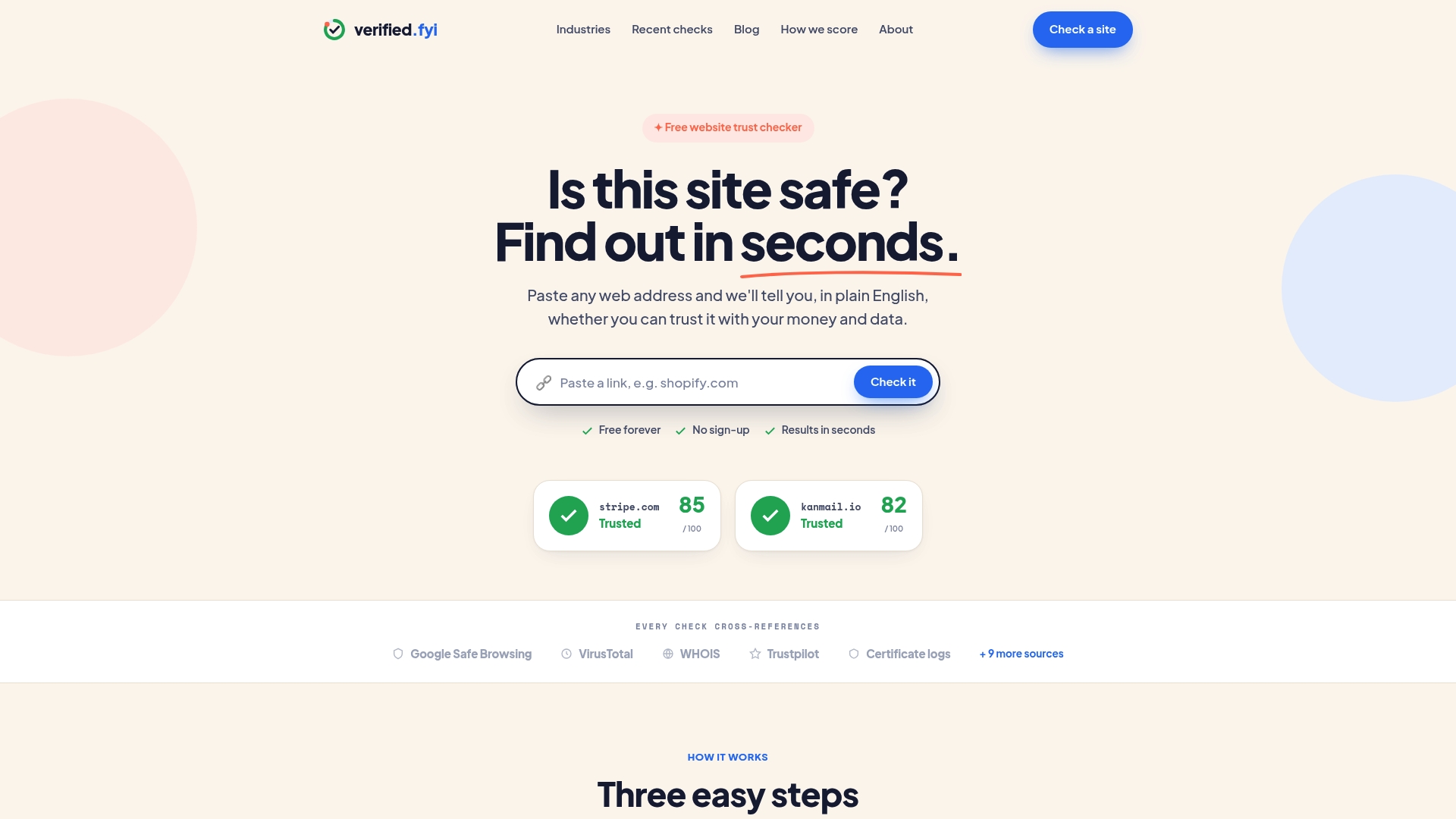
Unlike a single Safe Browsing scan or a manual WHOIS lookup, some verification services combine multiple signal types into one readable result, so you're not stitching together several separate checks by hand every time a suspicious link shows up in a message or comment. The full breakdown shows exactly which signals flagged concern, so you understand the "why" behind the verdict instead of just a color and a label. There's no sign-up required, and the results do not depend on payments that could influence scores.
If you run a page or brand yourself and want visitors to see that it has been checked, look into the trust badge option as a next step. Otherwise, the next time a link shows up in your feed, in a group chat, or in a comment section, paste it into the checker before you tap anything else.
Sources
- Tips to Stay Safe while Surfing the Web, Part 2: Accessing Websites Securely | CISA
- Safe Browsing FAQs - Transparency Report Help Center
- URL scanner verdicts vs antivirus engine differences | VirusTotal docs
- ICANN registration data policy FAQs
- Are ads on social media vetted or checked for scams? Here's what to know | FTC
FAQ
Is HTTPS Enough to Trust a Social Platform Link?
No. HTTPS only encrypts the connection between your device and the server, it doesn't verify who runs the site. CISA confirms that checking the padlock is a first step, not a full verdict, so pair it with a domain check and a reputation scan.
What Should I Do if a URL Scanner Flags a Site as Suspicious?
Stop before entering any information and don't proceed to login or payment pages. Search independently for the brand name plus "scam," and if you already shared payment details, contact your payment provider and report it to the FTC.
Can Verified fyi Check a Social Media Link Before I Click It?
Yes. Paste the URL into the free website trust checker and it returns a trust score along with a categorized verdict based on more than 200 security and reputation signals, with no sign-up required.
Why Do Google Safe Browsing and VirusTotal Sometimes Disagree?
They answer different questions. Safe Browsing scans for known malware and phishing patterns on indexed pages, while VirusTotal aggregates multiple antivirus engine results on files and URLs, so a phishing page with no malicious file attached can pass one check and still deserve caution on the other.
Is a Social Media Ad Automatically Trustworthy?
No. The FTC warns that ads aren't consistently vetted for scams, and impersonators frequently use a real brand's name and images. Search for the seller's official domain independently rather than trusting the ad placement itself.