
Before you click, run three quick checks: inspect the full domain for typosquatting or odd extensions, scan the URL with a trusted checker, and watch how the site behaves once it loads. Never download files or enter credentials until those checks come back clean. No single signal or tool catches everything, so we recommend combining manual review, a scanner, and solid browser defenses every time you visit an unfamiliar site.
TL;DR:
- Manual checks like inspecting the URL and looking for unusual domains or subdomains can quickly reveal signs of typosquatting or phishing sites.
- Safe browsing protocols include not trusting the padlock alone, hovering over links, and verifying site details with WHOIS or certificate inspections.
- Using online safety tools helps identify domains flagged for malicious activity, but results should be interpreted with caution and cross-checked.
- Browser and network defenses such as updates, ad blockers, protective DNS, and sandboxing significantly reduce the risk of infection from harmful websites.
- Recognizing social engineering tactics and avoiding suspicious pop-ups or shortened URLs are critical to preventing malware infections and data theft.
Table of Contents
- Fast manual checks you can do before you click or enter data
- How to use online site-check tools safely and what their results mean
- Browser, DNS, and device defenses that reduce exposure to malicious websites
- Malvertising and tricky pop-ups: how they work and how to stay safe
- If you already visited a suspicious site: step-by-step recovery and containment
- Phishing detection techniques beyond URL checks
- Using sandbox environments to safely investigate suspicious sites
- Analyzing website certificates and ownership to verify legitimacy
- Recognizing social engineering tactics on malicious sites
- The risks of shortened or obfuscated URLs
- DNS filtering and network-level protections
- Balancing speed and safety when checking unknown websites
- How and when to use our free site checker
- FAQ
- Sources
Fast manual checks you can do before you click or enter data
The quickest way to detect malicious websites safely starts with your own eyes, not a tool. Before you type a password or download anything, look at the full web address, not just the brand name that appears in the link text.
Typosquatting is the oldest trick in the book: a scammer registers "arnazon.com" or "paypa1.com" and hopes you skim past the swap. Watch for extra subdomains too, like "paypal.com.secure-verify.net," where the real domain is actually "secure-verify.net" and "paypal.com" is just a decoy sitting in front of it. Unusual top-level domains attached to a familiar brand name are also worth a second look, since legitimate companies rarely switch extensions without warning.
The padlock icon and "https://" prefix matter, but not the way most people think. They confirm the connection between you and the server is encrypted, nothing more. According to CISA guidance on accessing websites securely, that padlock does not verify who actually owns or runs the site, and attackers routinely obtain free, valid certificates for phishing pages. A secure padlock next to a fake login form is still a trap.
Once a page loads, its behavior tells you almost as much as its address. Be wary of:
- A download that starts automatically or a pop-up demanding you install something to "continue."
- A login form that appears on a page where you never requested to sign in.
- A CAPTCHA that behaves differently than usual, especially one asking you to copy and paste anything.
- Urgent, alarming language claiming your account will be suspended or your device is infected within minutes.
That last pattern lines up with how the FTC describes phishing tactics: scammers lean on panic to short-circuit careful thinking, since a calm reader is far more likely to check before they act.
A few habits take seconds and catch most problems early. Hover over a link before clicking so the real destination shows in your browser's status bar. Type known addresses directly into the address bar instead of trusting a link in an email or text. Expand shortened URLs before visiting them. Check whether the site has a real contact page, a physical address, and a privacy policy that actually describes what it does with your data.
Pro Tip: If a site's privacy policy reads like generic filler copied from somewhere else, treat that as a warning sign on its own.
How to use online site-check tools safely and what their results mean
Manual checks catch a lot, but website safety checker tools add a layer of verification that your eyes alone cannot provide, especially for domains that look polished but have a short or troubled history.
These tools generally fall into a few categories:
- Reputation databases that track whether a domain has been flagged for malware, phishing, or spam in the past.
- Multi-engine scanners that check a URL against dozens of security vendors at once, rather than relying on a single opinion.
- WHOIS lookups that reveal domain registration dates and, sometimes, ownership details.
- TLS and certificate inspectors that show who issued a site's certificate and when.
- Community-driven report sites where other users log scam encounters.
Submit URLs the safe way: paste the address into the scanner's input field rather than clicking through from a suspicious email or message. If you are investigating a site you already suspect is risky, doing this from a secondary device or a browser profile you do not use for banking adds another buffer.
Interpreting results takes a little judgment. A clean scan does not mean a site is guaranteed safe. It can mean the domain is simply too new for databases to have flagged it yet, or that the scam is freshly launched and hasn't been reported. Treat an "unknown" or "no data" result with the same caution as a mild warning, not as a pass. Conversely, a single flag from one engine out of dozens might be a false positive, so look for a pattern across multiple sources rather than panicking over one red mark.
When a tool does flag a site:
- Close the tab without clicking anything else on the page.
- Take a screenshot for your own records in case you need to report it later.
- Cross-check the domain in a second tool or a WHOIS lookup to confirm the pattern holds.
Combining a scanner's verdict with your own manual read of the URL and page behavior gives you a far more reliable picture than either check alone.
Browser, DNS, and device defenses that reduce exposure to malicious websites
Your browser and device settings do a lot of quiet work in detecting harmful websites online before you ever consciously notice a threat. A few adjustments meaningfully lower your exposure.
Keep your browser and its security plugins updated. Outdated browsers carry known vulnerabilities that malicious sites actively probe for, and every extension you install adds another piece of code with access to your browsing data. CISA's browser security guidance recommends trimming extensions down to only what you actually use.
Ad blockers help here too, though they come with a trade-off worth understanding:
- They reduce exposure to malvertising, since malicious ads never get the chance to load.
- They also require broad permissions to read and modify page content, so install one from a reputable source rather than an obscure, poorly reviewed listing.
- Some sites detect ad blockers and restrict access, which is a minor inconvenience compared to the protection gained.
Protective DNS is one of the more underused defenses for everyday users. A DNS resolver that filters known malicious domains, such as Quad9, blocks the connection before your browser even reaches the harmful server. CISA notes that this kind of DNS-based filtering can neutralize many malicious domains before a browser connects at all, and setting it up usually takes only a few minutes in your device's network settings.
For especially risky browsing, like clicking a link from an unverified source you still want to investigate, browser isolation tools run the page in a separate, contained environment away from your actual system. This is a heavier step than most casual browsing requires, but CISA calls it out as a high-value defense against drive-by downloads and malvertising for anyone who regularly investigates unfamiliar links.
Pro Tip: Turn on your browser's built-in safe browsing or enhanced protection setting. It is free, already installed, and checks pages against known threat lists automatically.
Malvertising and tricky pop-ups: how they work and how to stay safe
Malvertising is malicious code delivered through what looks like an ordinary ad, and part of what makes it dangerous is that it does not always require a click. CISA explains that malvertising can deliver malicious payloads or redirects without user interaction, simply by loading on a page you visit.
A few specific scams show up constantly. The fake CAPTCHA scam asks you to copy a command and paste it into your computer's run dialog, supposedly to prove you're human; the FTC warns that legitimate CAPTCHAs never ask users to run commands or install anything. Bogus tech-support pop-ups claim your device is infected and push you to call a number or download "repair" software. Misleading "system scan" overlays mimic your operating system's own security alerts to pressure an instant download.
A few habits cut your exposure sharply:
- Never copy and paste a command into your computer because a website told you to.
- Avoid clicking promoted or sponsored results in search engines when you can reach the same site organically.
- Close suspicious pop-ups using your browser's tab controls, not any button inside the pop-up itself.
- Consider blocking third-party scripts on unfamiliar sites, which limits what a hidden malicious ad can execute.
If you already visited a suspicious site: step-by-step recovery and containment
If you realize after the fact that you landed on a harmful page, moving quickly limits the damage.
- Disconnect your device from the internet and close the browser entirely, not just the tab.
- Run a full scan with your device's security software before reconnecting.
- Change passwords for any accounts you may have entered, ideally from a separate, trusted device, and turn on multi-factor authentication wherever it's available.
- Check recent account activity on your email, banking, and any other sensitive accounts for anything unfamiliar.
- If you shared payment details, contact your bank or card issuer right away to flag possible fraud.
- Report the incident to the IC3 and the FTC, since these reports feed into the broader effort to track and act on emerging scams.
Pro Tip: Save screenshots and the suspicious URL before you close everything down. You'll need the details later if you file a report or dispute a charge.
Phishing detection techniques beyond URL checks
A clean-looking URL does not guarantee a clean page. Phishing sites increasingly clone the exact design, logos, and layout of real brands, so content and design anomalies are often the better tell.
Look closely at fonts, spacing, and image quality. Cloned pages often use slightly stretched logos or mismatched fonts because they were copied rather than built from the brand's original files. Spelling and grammar mistakes, especially in formal communications from supposedly large companies, remain a reliable red flag. Pay attention to whether internal links on the page actually go where they claim, since many phishing clones only replicate the login form and leave every other link broken or pointing to the real company's actual site, an odd inconsistency that's easy to miss if you're not looking for it.
Also check whether the page asks for more information than the task requires. A shipping tracker that suddenly wants your full card number, or a "verify your account" page that asks for a Social Security number, is almost never legitimate. Real companies rarely request sensitive data through an unsolicited link in the first place.
Using sandbox environments to safely investigate suspicious sites
When you need to look more closely at a site without risking your main device, a sandbox or isolated virtual environment gives you a safe way to do it. A sandbox runs the site in a contained space, separate from your actual operating system, files, and accounts, so anything malicious on the page cannot reach your real data.

This matters most for people who regularly investigate unfamiliar links, such as checking a suspicious attachment or a link forwarded by someone else. Options range from a disposable virtual machine to browser-based isolation services that CISA specifically recommends as a defense against drive-by downloads and malvertising. For most casual users, a simpler approximation works too: a separate browser profile with no saved passwords or payment information, used only for investigating questionable links, keeps your main browsing environment untouched.
Sandboxing is not something you need for every link you encounter. It's most useful when a site has already triggered some suspicion but you want to confirm what it actually does before writing it off entirely.
Analyzing website certificates and ownership to verify legitimacy
A certificate shows that your connection is encrypted. It does not show that the business behind the site is who it claims to be, and that gap is exactly what attackers exploit.
To dig a layer deeper, click the padlock icon in your browser and view the certificate details. Look at who issued it and, where available, the organization it was issued to. Many legitimate businesses use extended validation certificates that display the company name directly, while scam sites typically rely on basic, free certificates that only confirm a domain, not an organization.
A WHOIS lookup adds another layer. It shows when a domain was registered and, depending on privacy settings, who registered it. A domain registered a few weeks ago but presenting itself as an established, long-running business is a mismatch worth noticing. As CISA points out, certificate presence alone tells you nothing about legitimacy, and attackers routinely secure valid certificates for domains built purely for phishing.
Recognizing social engineering tactics on malicious sites
Most malicious websites succeed because of psychology more than code. Scammers exploit urgency, authority, and fear far more reliably than they exploit software bugs.
Urgency shows up as countdown timers, warnings that your account will be suspended within hours, or claims that a deal expires imminently. Authority gets faked through official-looking logos, fabricated badges, or language that imitates a government agency or well-known brand. Fear-based tactics claim your device is infected or your identity has been compromised, pushing you toward an action before you've had a chance to verify anything. The FTC's phishing guidance notes that legitimate organizations do not unexpectedly demand immediate payment or account verification over email or text.
The most reliable countermeasure is procedural, not technical: when a message or page pressures you to act immediately, stop and verify independently through a channel you found yourself, not one the page or email provided.
The risks of shortened or obfuscated URLs
A shortened link hides its actual destination behind a compact redirect, which is exactly why scammers favor them. You cannot see "arnazon-security-check.net" if all you're shown is "bit.ly/3xT9kLp."
Obfuscation goes further, using URL encoding, unusual characters, or nested redirects to disguise a malicious destination even from someone who tries to read the link carefully. Before clicking a shortened URL from an unfamiliar sender, run it through a link-expanding tool to reveal the real address first. If the final destination still looks unfamiliar or mismatched with what the message claimed, treat it the same way you'd treat any other unverified link: check the domain manually, then confirm with a scanner before going any further.
This risk is highest in text messages and social media, where character limits make shortened links common and where there's often no easy way to hover and preview before tapping.
DNS filtering and network-level protections
DNS filtering blocks malicious connections at the network level, before your browser ever loads a harmful page. Instead of relying solely on what happens inside your browser, a protective DNS resolver checks every domain your device tries to reach against lists of known malicious infrastructure, and refuses the connection if there's a match.

This approach catches threats that manual URL checks can miss entirely, including malware that tries to reach a command-and-control server in the background without any page ever appearing on your screen. Setting up a protective resolver, such as Quad9, generally takes a few minutes in your device or router's network settings and runs quietly from then on, with no ongoing maintenance required.
For households and small offices, network-level filtering has an advantage over browser-level tools: it protects every device on the network, including phones, smart TVs, and other gadgets that don't support browser extensions at all.
Balancing speed and safety when checking unknown websites
We think most people overcorrect in one direction or the other: either they click first and worry later, or they treat every unfamiliar link as a full investigation. Neither is realistic day to day.
A quick manual glance, domain spelling, HTTPS, overall behavior, covers routine browsing. Save the deeper checks, a scanner, a WHOIS lookup, a sandbox, for anything asking for money, credentials, or personal details. Parents and shoppers benefit most from one habit above all others: pause before urgency. If something is pressuring you to act in the next five minutes, that pressure is the warning, not the deadline. Reporting what you find, even when you're not fully sure it was a scam, helps build a clearer picture for everyone else checking the same site later.
— Nick
How and when to use our free site checker
We built Verified around one idea: you should not need technical training to get a straight answer about a site before you buy, sign up, or share information. Paste any URL into a checker that cross-references many security, ownership, and reputation signals to return a 0 to 100 trust score alongside a clear verdict, from dangerous to trusted.
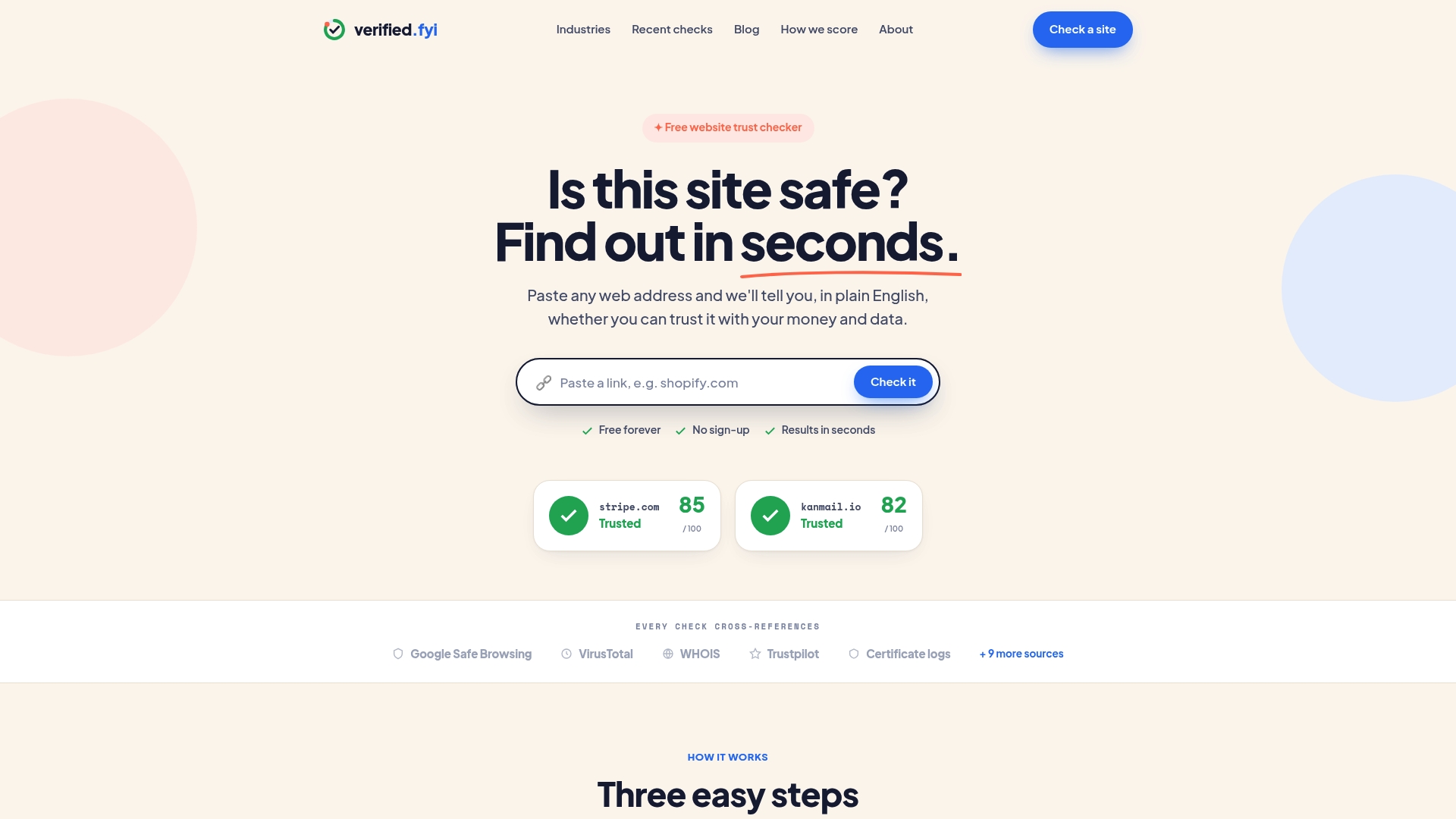
It works best for the situations where manual checks leave you uncertain:
- An unfamiliar online seller you've never bought from before.
- A link forwarded by someone else with no obvious way to verify it.
- A site that passed your manual checks but still feels slightly off.
If you run a business and want to show visitors you've been independently checked, take a look at our trust badge for your own site.
FAQ
Is HTTPS enough to confirm a website is safe?
No. HTTPS confirms your connection is encrypted, but it says nothing about who actually runs the site. Attackers routinely obtain valid, free certificates for phishing pages, so check the domain and ownership separately rather than trusting the padlock alone.
What should I do immediately after visiting a malicious site?
Disconnect from the internet, close your browser, and run a full security scan before reconnecting. Then change your passwords from a separate device, turn on multi-factor authentication, and report the incident to IC3 if you suspect fraud.
How can I tell if a pop-up CAPTCHA is a scam?
A legitimate CAPTCHA never asks you to copy a command and run it on your computer. The FTC warns that this exact tactic is used to trick people into installing malware disguised as a verification step.
Where should I report a suspicious or phishing website?
Report it to the FTC and the Internet Crime Complaint Center, both of which use these reports to track scam patterns. Most browsers also let you flag a page directly from the address bar.
Can a free tool like Verified.fyi tell me if a site is safe?
Our free checker at Verified analyzes over 200 security and reputation signals to generate a trust score and verdict for any URL you paste in. Treat it as one strong signal alongside manual checks, not as the only step you take before trusting an unfamiliar site.
Sources
Government guidance exists precisely because individual judgment, while useful, benefits from backup. The FTC's phishing guidance highlights how scammers manufacture urgency to bypass careful thinking, and CISA's browser security guidance lays out concrete defenses, from ad mitigation to protective DNS to browser isolation, for reducing exposure to malicious infrastructure.
Reporting matters as much as prevention. The IC3 explains that filing a complaint helps law enforcement identify patterns across many victims, not just resolve one individual case. A report that feels small on its own becomes part of a much larger intelligence picture.
A few practical takeaways worth keeping in mind: